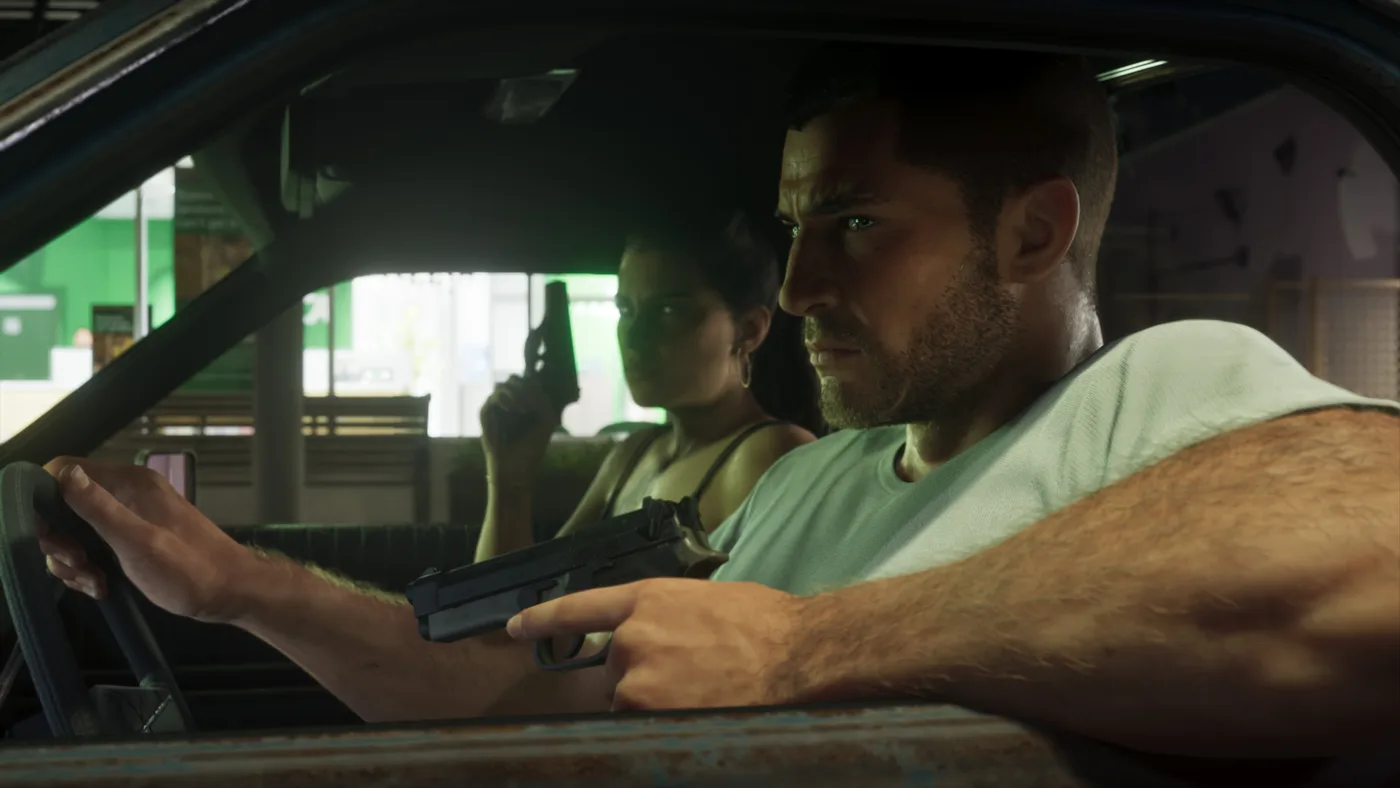
What you can prepare before starting GTA 6
To protect future GTA 6 progress on PS5, review Sony’s save-data tools now: PlayStation Plus cloud synchronisation and a full console USB backup. This guide checks Sony’s documentation on November 5, 2026. It describes PS5 functions, rather than GTA VI’s own save menu or a recovery test of a game we have not played.
Installation, progress and captures are different data
Moving an installation to free space is different from copying progress. Sony separates games and applications, saved data and captures. Identify the selected category before deleting or moving files. A game’s download size also does not determine its save-file size; we provide no unverified GTA VI save-size figure.
| Data type | What it represents |
|---|---|
| Game files | The installation needed to run the product |
| Saved data | Your progress and saved game state |
| Screenshots and clips | Images and recordings, not restorable progress |

Preparing PS5 cloud synchronisation with PS Plus
Save-data cloud storage requires PlayStation Plus. Sony’s PS5 route is Settings > Saved Data and Game/App Settings > Saved Data (PS5) > Sync Saved Data > Auto-Sync Saved Data. Review the general and per-game preferences when available. Rest-mode sync also needs the relevant internet connection and automatic-update settings enabled. These are system settings, not a supposed GTA VI cloud button.
Checking the latest copy before changing consoles
Sony provides View Sync Status under Sync Saved Data and a check through a game’s home-screen options. Review that status before moving to another PS5 and use the PlayStation account holding the data. Synchronisation maintains the latest state; do not treat it as an unlimited archive of earlier save versions. If a conflict appears, compare the displayed information before choosing which copy to retain.
Full USB backup: scope and the difference from restoring
Sony’s full-backup route is Settings > System > System Software > Back Up and Restore > Back Up Your PS5. A supported drive needs FAT32 or exFAT and enough space; game extended storage uses a different format. Select the data to preserve and follow the official guide without powering off during the operation. Check existing USB contents before preparing it for another use. Sony excludes games and apps installed on M.2 or extended USB storage from this backup; retain those drives separately.
Sony warns that restoring this full backup erases current PS5 data. That differs from downloading one game’s cloud save and is not a casual test of whether a backup works. Trophies also need separate synchronisation. Before recovery, identify the procedure needed and which existing console state it will replace.
What still needs checking inside GTA VI
The official release remains November 19. Actual autosaving, manual options and write indicators need checking in the released game; this guide invents no menus or slot count. Prepare now by reviewing PS5 preferences with a game you own and checking your account and latest sync status. An external download promising a 100% GTA 6 save does not replace those official mechanisms.