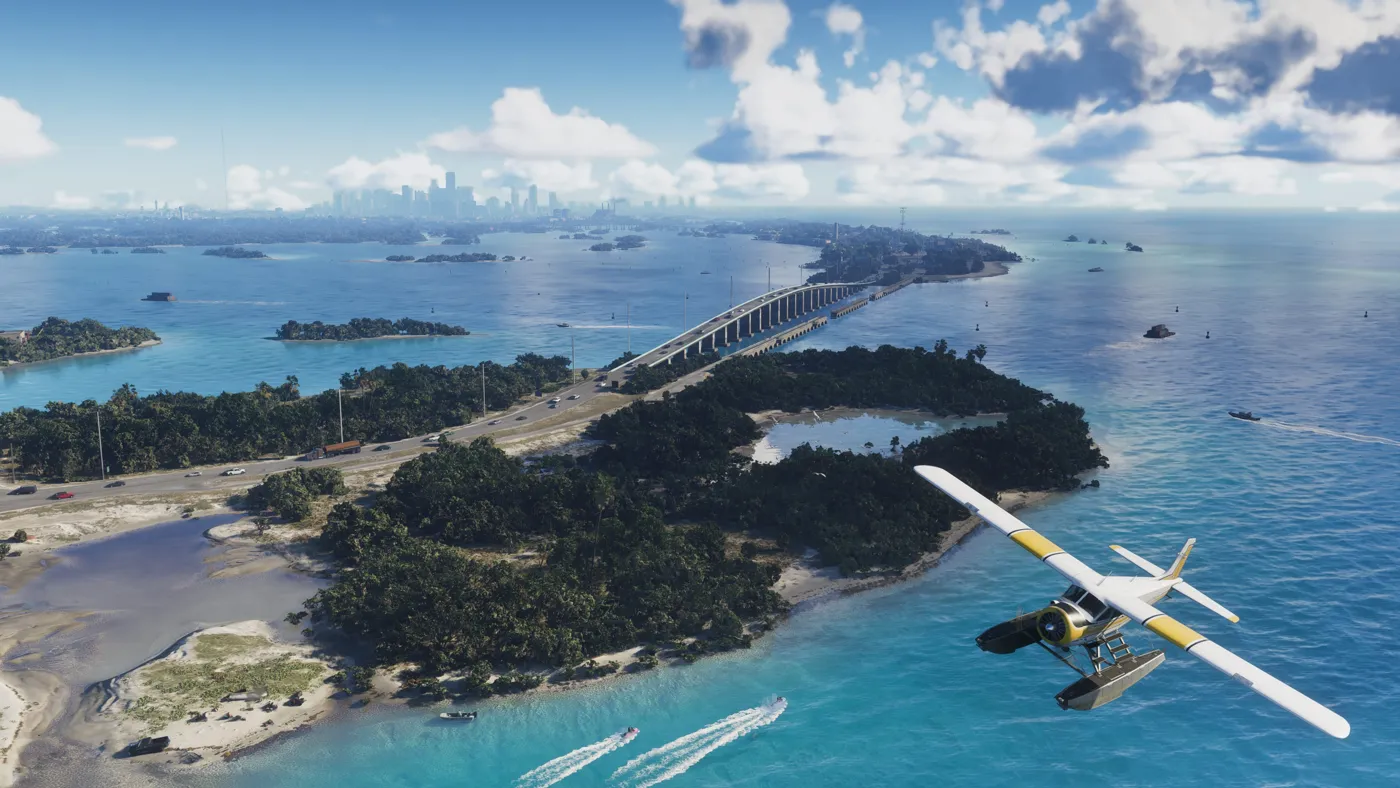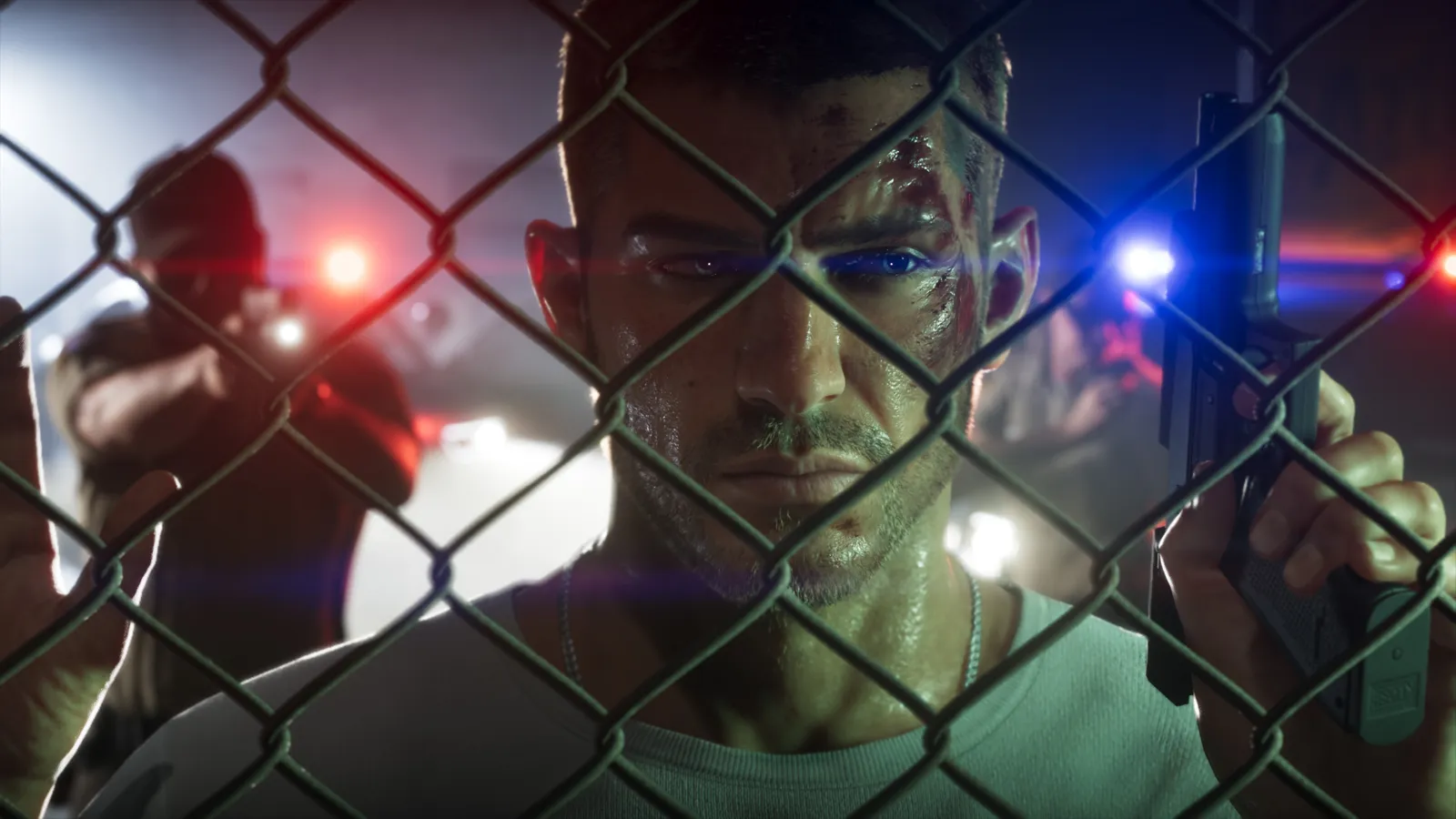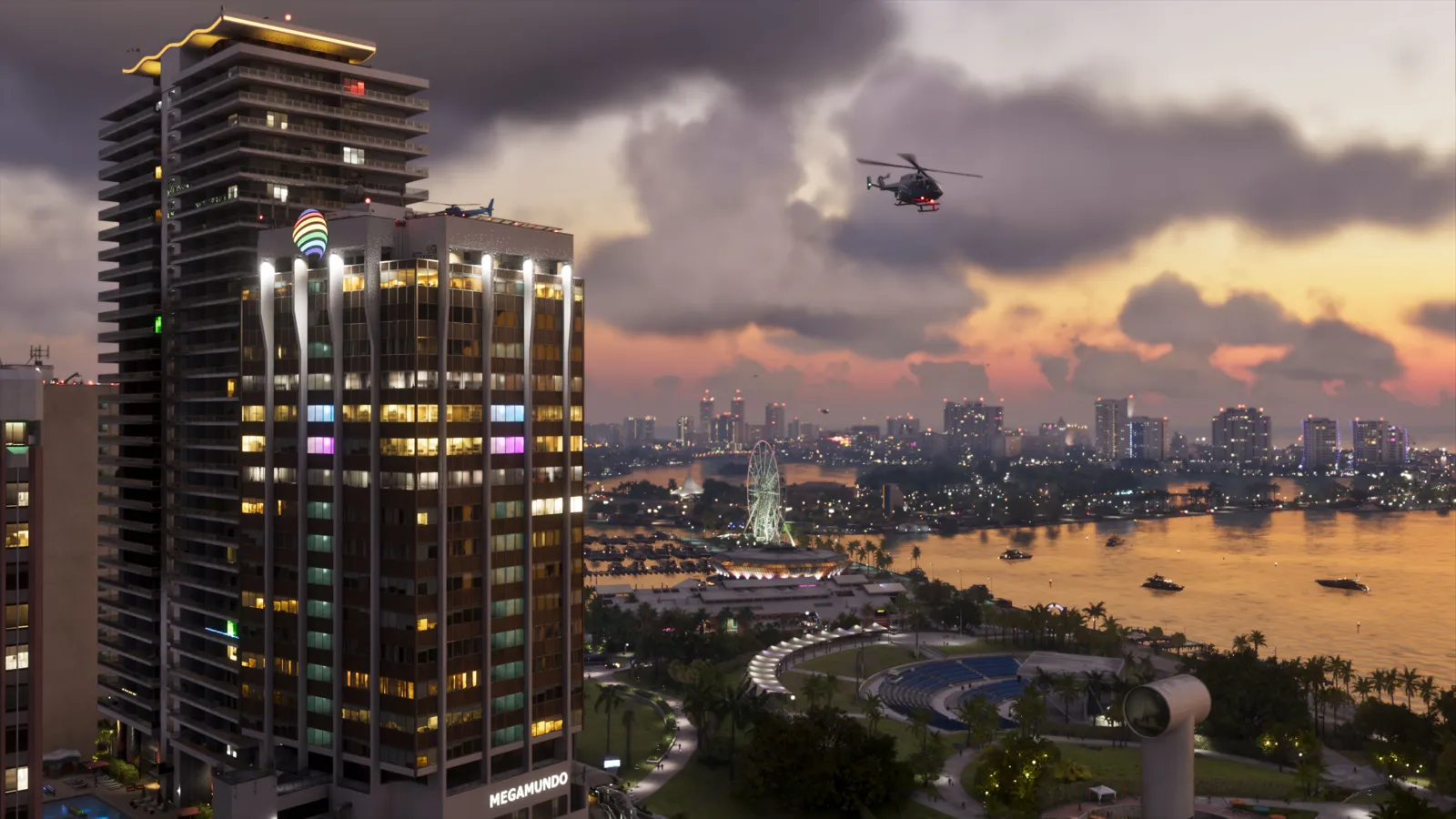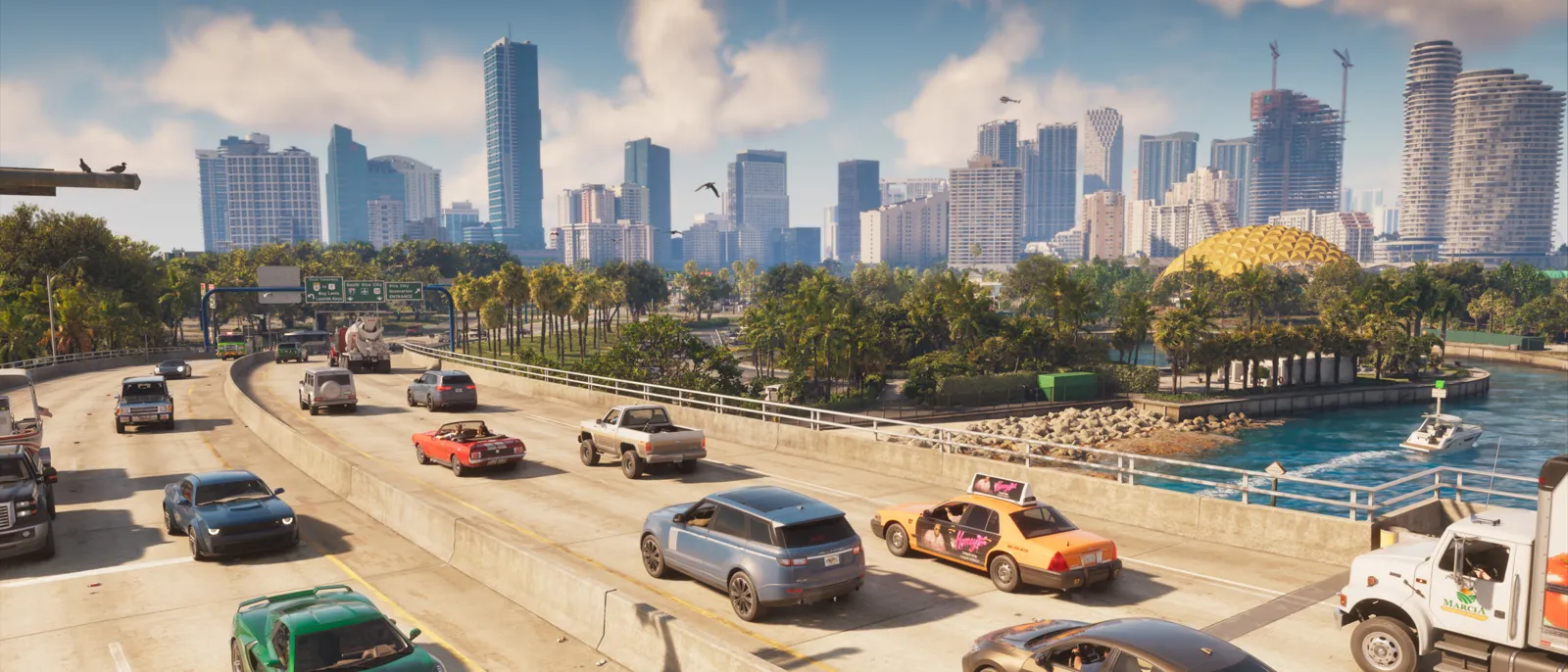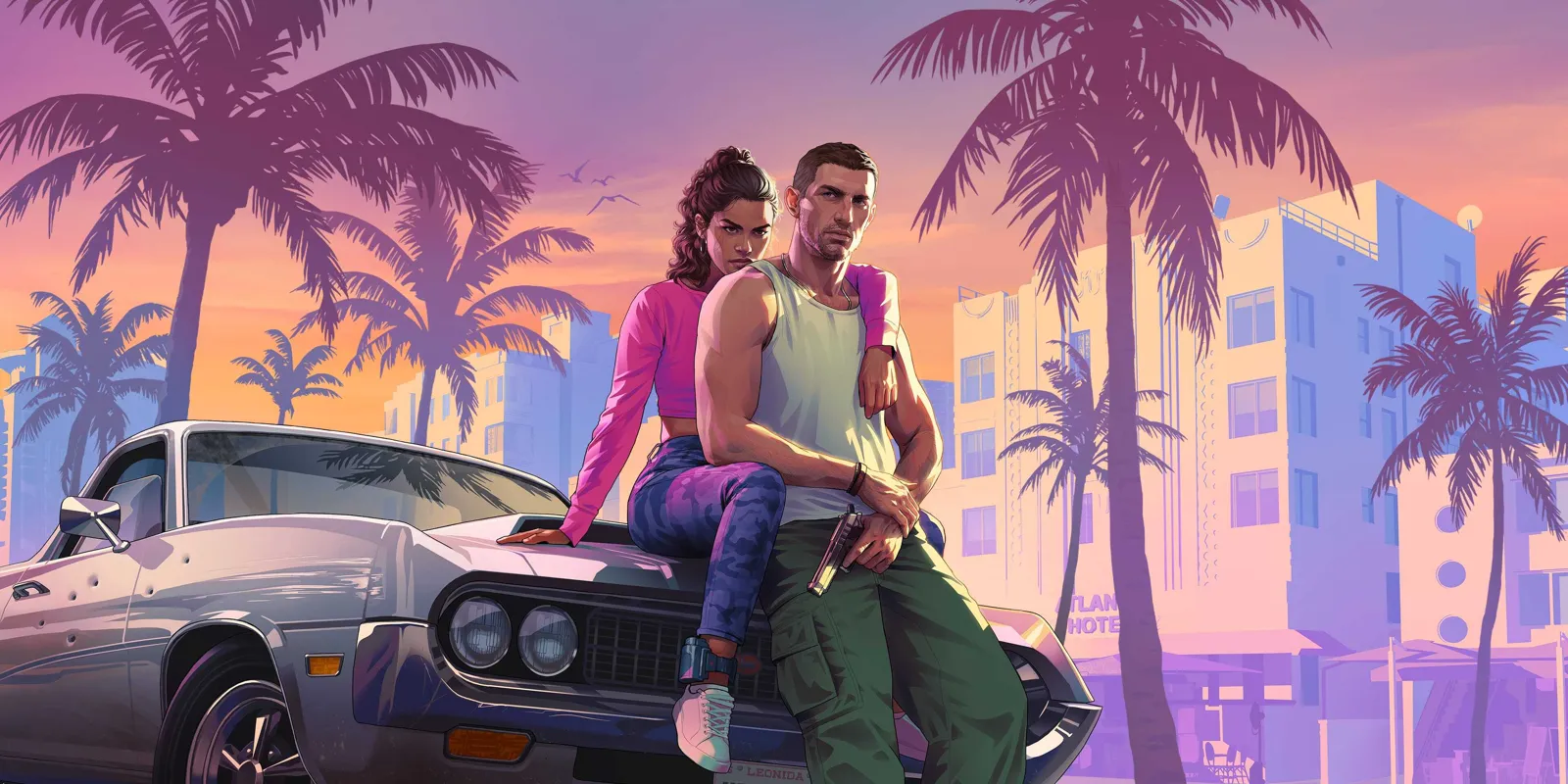
Where to download official GTA 6 wallpapers
Official GTA 6 wallpapers are available through Artwork & Wallpapers on Rockstar’s website. Checked on November 7, 2026, the collection contains 25 artwork and wallpaper entries, many with several sizes, plus a ZIP download. This guide explains how to choose an image for a computer or phone without mistaking a thumbnail for the original file.
1. Open the official Artwork & Wallpapers link. 2. Choose an illustration and review its available sizes. 3. Save the appropriate file, or use the collection download and extract the ZIP on your device. Individual files can have different proportions: the entry count does not imply one resolution for every image.
PC, phone and 4K: choose dimensions rather than a label
For a landscape display, choose proportions matching your desktop. For a portrait phone, allow room for the clock, icons and notification area. Stretching an image changes character proportions; filling the screen may crop the edges. Decide which part of the composition you want to preserve.
A post saying 4K does not establish a file’s dimensions. Check the downloaded original’s width and height instead of saving a screenshot of its preview. A larger image can be reduced; enlarging a thumbnail cannot restore detail absent from it. We do not label every collection file as 4K or 8K.
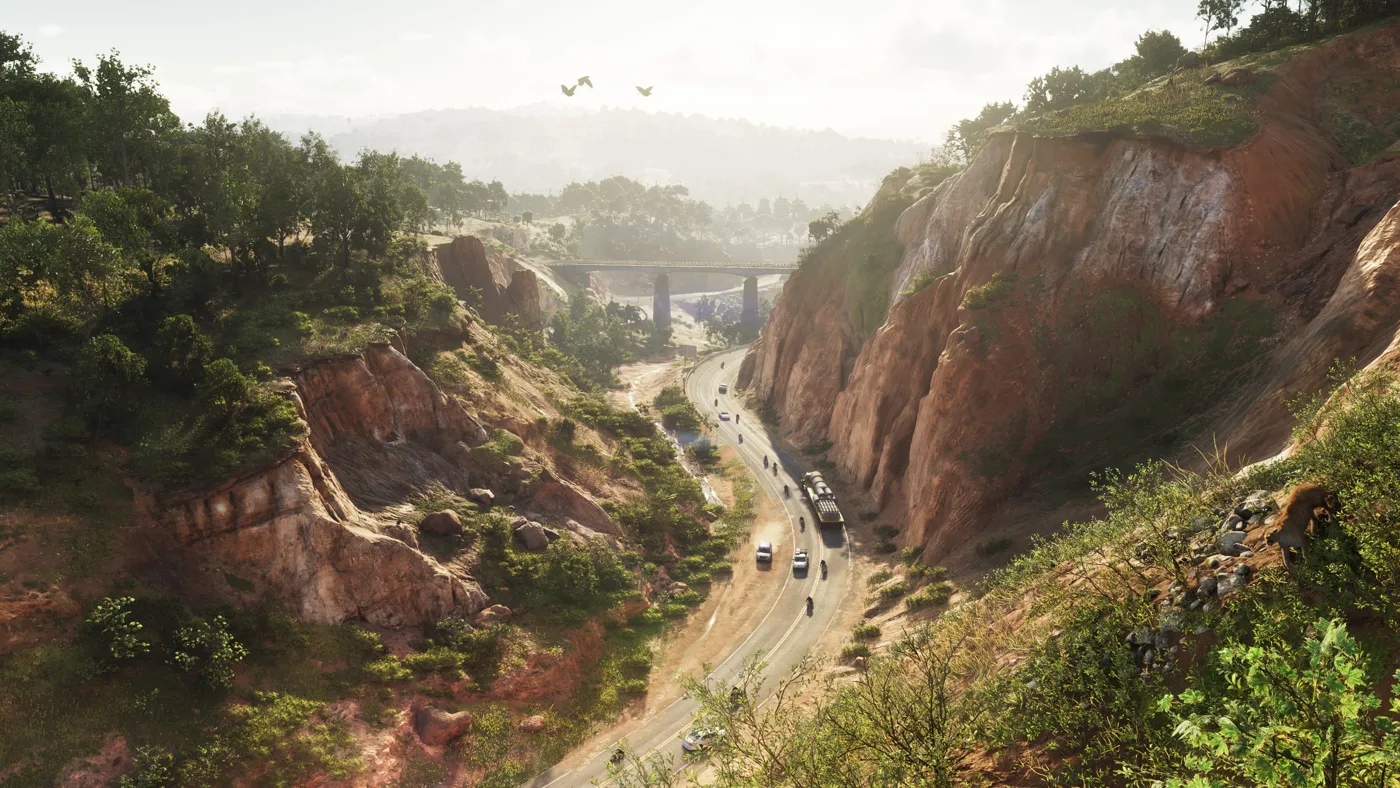
How to set your GTA 6 wallpaper in Windows
After saving the file, open Settings > Personalization > Background and choose Picture. Select the file from your device and review how it fits. Microsoft also supports right-clicking an image and choosing Set as desktop background. Use a local copy rather than relying on a browser preview.
How to use it on iPhone while preserving the framing
Save the image to Photos. In Settings > Wallpaper, tap Add New Wallpaper, then Photos; select your file, adjust the framing and confirm. Apple lets you use a wallpaper pair or customise the Home Screen separately. Labels may vary with iOS version and language.
Official artwork, screenshots and photo mode
Drawn artwork and game screenshots are different formats within the official media. Our gallery report covers launch images, while the photo-mode guide separates preview reports from console capture tools. Downloading an illustration does not establish in-game GTA VI camera controls.
Rockstar offers media to download and share while retaining its rights. Keep the credit and provenance when sharing. This guide covers screen personalisation; it does not grant a commercial licence to print and sell products using the images.