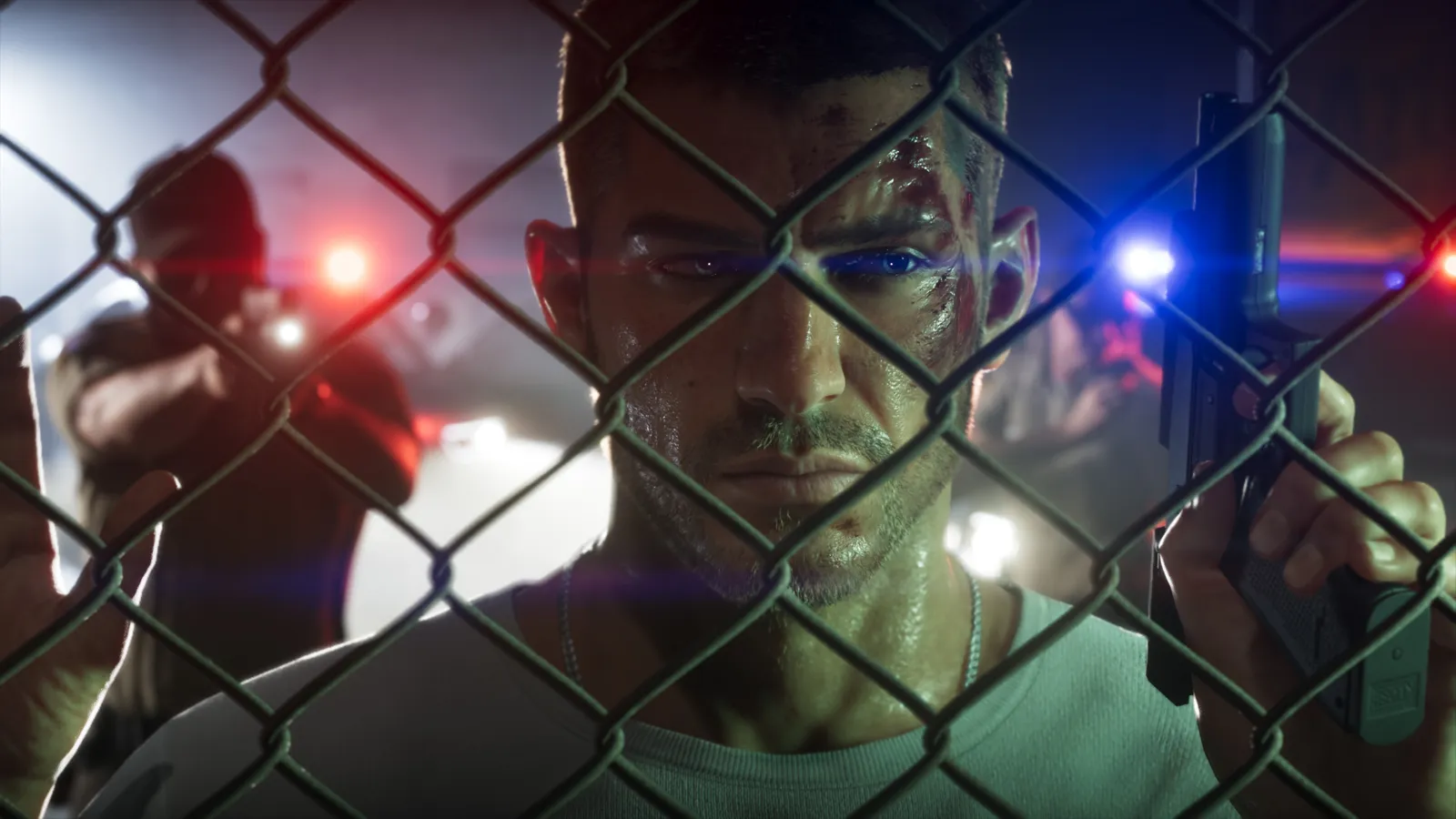
What you are preparing for GTA 6
Rockstar confirmed Xbox Remote Play on November 10. This guide prepares streaming from your own Series X|S to another screen; it does not install a PC or mobile version or provide earlier access. The steps describe the Xbox service, not a FansGTA test of the final game.
Console, controller and game access
For GTA VI, prepare the Series X|S that will run the game and check the account holding its licence. Seeing a title in a library or having its files downloaded does not establish that it can launch at that moment. Check the purchase, installation status and unlocking separately.
To pair an Xbox Wireless Controller over Bluetooth, turn it on and hold Pair for three seconds. Then select it in your device’s Bluetooth settings.
Audio accessories attached to the controller do not work over Bluetooth; connect headphones directly to the receiving device. Remote Play currently does not support keyboard, mouse or touch controls.
Xbox lists 7–10 Mbps and recommends 5 GHz Wi-Fi. These are service guidelines, not GTA VI measurements or a guarantee of the same response as playing at the console.
Enable the console and connect from a browser
1. In Settings > Devices & connections > Remote features, enable remote features.
2. Select Sleep under power options.
3. Open xbox.com/remoteplay in a supported browser and sign in with the account used to enable remote play. Select your console, then Remote play on this device.
Before launch, check the connection with another compatible game you can already access. That can reveal a setup problem without confusing it with a GTA VI fault. Keep a record of any settings you change so that you can review them later.
Browser and Xbox App: choosing the right route
Microsoft moved mobile access to the browser in April 2025. Do not necessarily expect a button in the phone app. On Windows you can also use the Xbox app.
The table summarises published web-access minimums, checked November 12; keep your browser updated. These are not requirements for a native PC or mobile edition of GTA VI. A television having a browser does not automatically make it a supported client.
| System | Browser |
|---|---|
| Windows 10 20H2+ / ARM | Edge / Chrome 85+ |
| iOS / iPadOS 14.4+ | Safari 14+ / Chrome 85+ |
| macOS 14.1.2+ | Safari 16+ / Edge / Chrome 85+ |
| Android 12+ | Edge / Chrome 85+ |
| ChromeOS 85+ | Chrome 85+ |
Console, controller or session: what to check if it fails
If it cannot connect: check Xbox Status, updates, remote features and Sleep, then restart the console and receiving device.
If the controller does not respond: check its Bluetooth connection and pair it again with the receiving device.
If the session drops: avoid switching networks. Save often to limit lost progress if you cannot reconnect.
We have not measured GTA VI’s resolution, frame rate or hourly data use through Remote Play. Official images illustrate the game, not a streaming test.
Remote Play, cloud and remote installation answer different questions
To send an installation to your console, use our Xbox app guide. For Xbox’s server-based option, read our Cloud Gaming report and its conditions. We also have a guide separating Android, iPhone and native mobile versions. Choosing the method before following instructions avoids looking for an install command when what you need is to start a stream.